# Collaborate in the editor (/editor/collaborate)
Related: [How to use the editor](/editor/tutorial.md), [Create and edit pages](/editor/pages.md), [Publish changes](/editor/publish.md), [Review changes](/editor/review.md), [Ask agent](/editor/agent.md), [Editor settings for AI and publishing](/editor/settings.md)
Work with your team on a page by commenting on it, suggesting changes to it, or editing it together at the same time.
## Comments [#comments]
All [roles](/dashboard/roles) can comment, reply, and resolve threads.
Comments let you leave feedback on specific text without editing the content.
**Comments never reach your repository.** They are only in the editor and are never included in the published site or committed to Git. If your branch has an open pull request, Mintlify adds a summary of unresolved threads to the pull request description, with a link back to each comment. The summary updates as threads change.
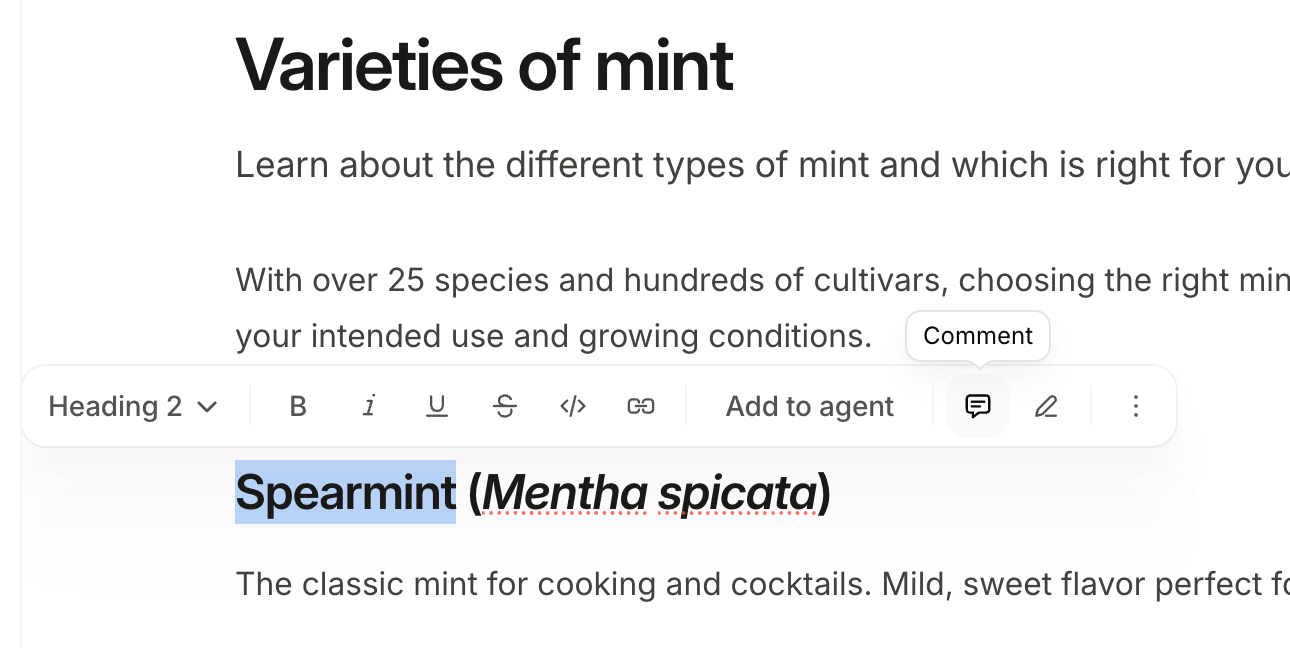
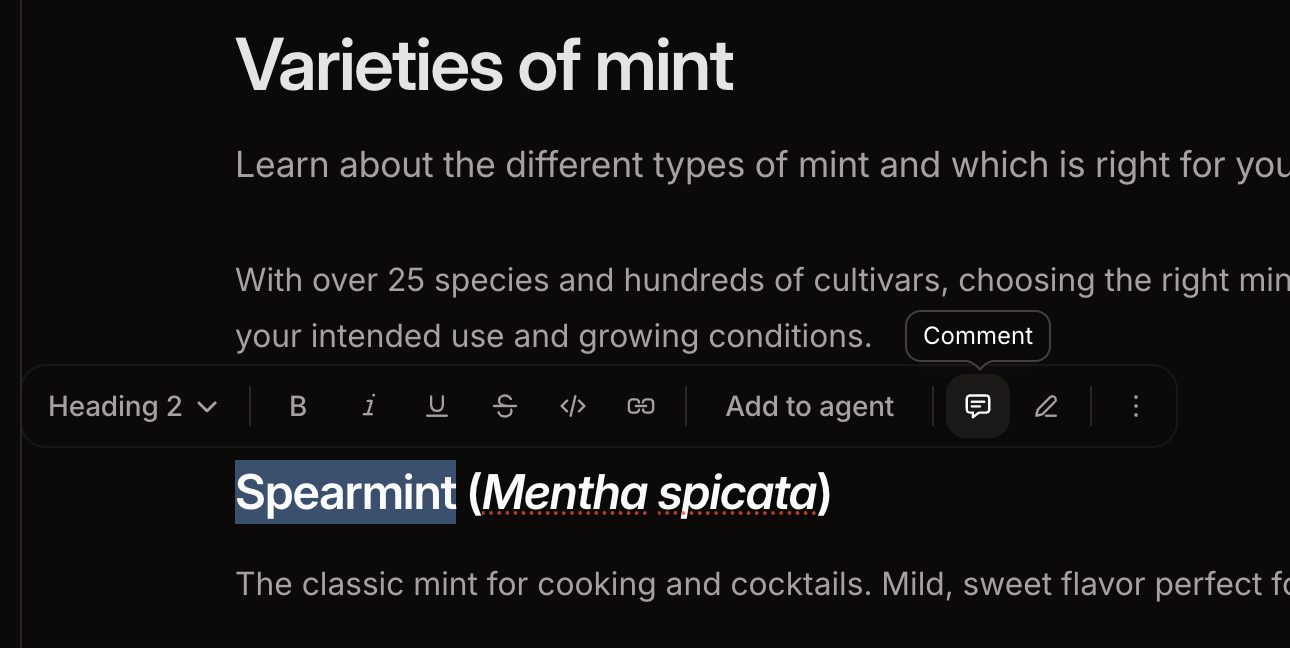
To add a comment, highlight text and click the **Comment** icon in the toolbar or press Cmd + Shift + M (macOS) or Ctrl + Shift + M (Windows).
 Type `@` to mention a teammate in a comment. They must be a member of your organization who has accepted their invitation. When you mention a teammate in a comment, they receive an email notification. Manage which comment and suggestion emails you receive from the [Notifications](/dashboard/notifications) page of your dashboard.
Comment threads appear in both visual and source mode. In source mode, you can read, reply to, and resolve existing threads, but starting a new comment requires visual mode.
To see every thread on the current page:
1. Click **More options** in the top-right of the page.
2. Click **Comments**.
React to a comment to acknowledge it without replying. Hover over a comment, click the **Add reaction** button, and choose an emoji. Reacting to someone else's comment notifies the comment's author.
To edit or delete a comment you wrote, click **More actions** on the comment. You can only edit and delete your own comments. Deleting the first comment in a thread deletes the entire thread.
## Suggestions [#suggestions]
Suggestions propose a change while leaving the current content in place, so a teammate can accept or reject it.
Editors and admins can accept or reject any suggestion. Viewers cannot.
To make a suggestion, highlight text and click **Switch to suggesting** in the toolbar, or press Cmd + Shift + E (macOS) or Ctrl + Shift + E (Windows). In suggesting mode, a **Suggesting** label appears in the top bar, and your deletions and insertions appear as highlighted text rather than edits. Click the label to go back to editing. Pending suggestions appear beside the page and in the comments panel.
[Viewers](/dashboard/roles) are always in suggesting mode. Suggesting mode activates automatically when a viewer opens the editor so that they can propose changes without editing content directly.
Click a highlighted suggestion, then click **Accept suggestion** or **Reject suggestion**. Either choice resolves the suggestion thread. An accepted change becomes part of your current branch and goes live the next time you [publish](/editor/publish).
## Ask the Mintlify agent [#ask-the-mintlify-agent]
Mention `@mintlify` in a comment, suggestion, or reply to ask the [editor agent](/editor/agent) about the current page. The agent runs in the background with the page, thread, and branch as context, then posts its answer as a reply in the same thread.
```text
@mintlify does this endpoint support pagination?
@mintlify are there any pages that contradict this?
```
The agent runs read-only when replying to comments. It can search your docs, read pages, fetch web content, and load skills, but it cannot edit content, create suggestions, or publish. To make changes, open the [editor agent](/editor/agent) directly.
Mentions work on private pages for members who already have access.
## Real-time editing [#real-time-editing]
When multiple people open the same page on the same branch, they edit together. Each person's cursor and edits are visible to everyone, with avatars in the toolbar.
Real-time editing works in both visual mode and source mode. You can edit the MDX in source mode while a teammate works in visual mode on the same page. Their cursor and selection appear in your editor, and yours appear in theirs, including in the title and description fields.
* Changes from all collaborators merge automatically. Two people editing the same section won't create conflicts.
* Undo only affects your own edits.
* If you lose your connection, edits save locally and sync when you reconnect.
* In source mode, invalid MDX or frontmatter YAML stays local to you until you fix it. Teammates only receive valid content, and invalid MDX [blocks publishing](/editor/publish#invalid-mdx-blocks-publishing) until it's repaired.
When the [Mintlify agent](/agent) edits a page through the API or MCP, it appears like any other collaborator, with an avatar and a live cursor at its most recent edit. The cursor clears when the agent finishes.
Type `@` to mention a teammate in a comment. They must be a member of your organization who has accepted their invitation. When you mention a teammate in a comment, they receive an email notification. Manage which comment and suggestion emails you receive from the [Notifications](/dashboard/notifications) page of your dashboard.
Comment threads appear in both visual and source mode. In source mode, you can read, reply to, and resolve existing threads, but starting a new comment requires visual mode.
To see every thread on the current page:
1. Click **More options** in the top-right of the page.
2. Click **Comments**.
React to a comment to acknowledge it without replying. Hover over a comment, click the **Add reaction** button, and choose an emoji. Reacting to someone else's comment notifies the comment's author.
To edit or delete a comment you wrote, click **More actions** on the comment. You can only edit and delete your own comments. Deleting the first comment in a thread deletes the entire thread.
## Suggestions [#suggestions]
Suggestions propose a change while leaving the current content in place, so a teammate can accept or reject it.
Editors and admins can accept or reject any suggestion. Viewers cannot.
To make a suggestion, highlight text and click **Switch to suggesting** in the toolbar, or press Cmd + Shift + E (macOS) or Ctrl + Shift + E (Windows). In suggesting mode, a **Suggesting** label appears in the top bar, and your deletions and insertions appear as highlighted text rather than edits. Click the label to go back to editing. Pending suggestions appear beside the page and in the comments panel.
[Viewers](/dashboard/roles) are always in suggesting mode. Suggesting mode activates automatically when a viewer opens the editor so that they can propose changes without editing content directly.
Click a highlighted suggestion, then click **Accept suggestion** or **Reject suggestion**. Either choice resolves the suggestion thread. An accepted change becomes part of your current branch and goes live the next time you [publish](/editor/publish).
## Ask the Mintlify agent [#ask-the-mintlify-agent]
Mention `@mintlify` in a comment, suggestion, or reply to ask the [editor agent](/editor/agent) about the current page. The agent runs in the background with the page, thread, and branch as context, then posts its answer as a reply in the same thread.
```text
@mintlify does this endpoint support pagination?
@mintlify are there any pages that contradict this?
```
The agent runs read-only when replying to comments. It can search your docs, read pages, fetch web content, and load skills, but it cannot edit content, create suggestions, or publish. To make changes, open the [editor agent](/editor/agent) directly.
Mentions work on private pages for members who already have access.
## Real-time editing [#real-time-editing]
When multiple people open the same page on the same branch, they edit together. Each person's cursor and edits are visible to everyone, with avatars in the toolbar.
Real-time editing works in both visual mode and source mode. You can edit the MDX in source mode while a teammate works in visual mode on the same page. Their cursor and selection appear in your editor, and yours appear in theirs, including in the title and description fields.
* Changes from all collaborators merge automatically. Two people editing the same section won't create conflicts.
* Undo only affects your own edits.
* If you lose your connection, edits save locally and sync when you reconnect.
* In source mode, invalid MDX or frontmatter YAML stays local to you until you fix it. Teammates only receive valid content, and invalid MDX [blocks publishing](/editor/publish#invalid-mdx-blocks-publishing) until it's repaired.
When the [Mintlify agent](/agent) edits a page through the API or MCP, it appears like any other collaborator, with an avatar and a live cursor at its most recent edit. The cursor clears when the agent finishes.