# Analyze documentation searches (/analytics/search)
Related: [Analyze assistant conversations](/analytics/assistant.md), [Export analytics to CSV](/analytics/export.md), [Stream analytics events to Amazon S3](/analytics/streaming.md), [Analyze documentation traffic](/analytics/traffic.md), [Analyze user engagements](/analytics/user-engagements.md)
Analytics require a [Pro or Enterprise plan](https://mintlify.com/pricing?ref=analytics).
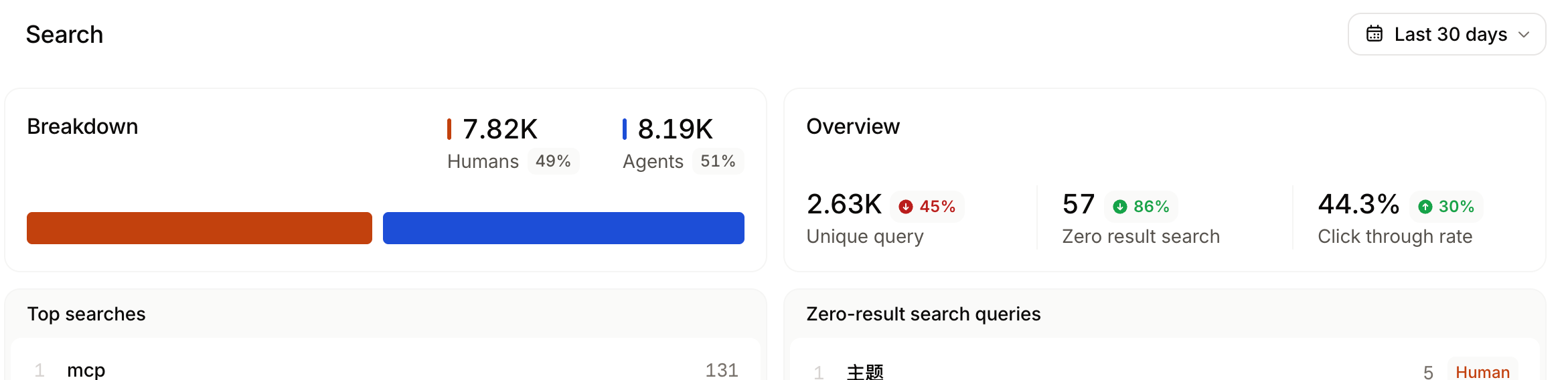
The **Search** view of the [analytics](https://app.mintlify.com/analytics) page displays search volume, queries with no results, and click-through rates.
Review search analytics to:
* **Monitor search trends**: Observe changes in search queries to understand how users find your content and which topics they want information about.
* **Identify frequent queries**: Use frequent queries to understand which topics are most important to users. Identify gaps in coverage and prioritize content updates.
* **Identify low click-through rates**: Click-through rates (CTR) show how many users click a search result after typing a query. A low CTR can indicate that the search results are not relevant to users' queries. For frequent search terms with a low CTR, improve the relevance of search results by adding keywords or updating your content.
CTR counts a search as clicked only when a user selects a specific result, either with the pointer or by activating a highlighted result with the keyboard. If a user asks the AI assistant instead of clicking a result, that search is not counted as a click.